# The GUI: a first fit
This tutorial takes you in the GUI from an empty screen to a fit you have read.
`rietx gui` is a browser front end to the package.
It runs a small HTTP server on your own machine, serves one page to a browser,
and calls the same `Refinement` methods a script would. Nothing about a project
is private to it: a project the GUI made opens in Python, and a fit run from a
script shows up in the GUI’s history.
[The GUI panel by panel](../reference/gui-guide.html.md) then goes panel by panel, and
[The GUI as a text document and a wire](../reference/gui-power.html.md) is the text document, the keyboard and the wire.
## Install and start
The GUI needs nothing beyond rietx itself. Its front end is committed inside
the package, so installing it never needs node.
```console
$ pip install rietx
$ rietx gui
rietx gui — http://127.0.0.1:8731/
no project — open or create one in the app
Ctrl-C to stop
```
A browser opens on that address. `--no-open` suppresses that, `--port` moves it,
and `rietx gui my_sample.rex` starts with a project already open.
`rietx gui --help` lists every option.
Everything you do writes to the project as you do it. There is no unsaved state
and no “are you sure?” on close, because each verb persists as it runs. That
also means there is no read-only way to look at a project: opening one appends a
line to its log before you have done anything. To look without changing, use
`rietx gui my_sample.rex --scratch`, which works on a byte-for-byte copy in a
temporary directory.
## Start with an example
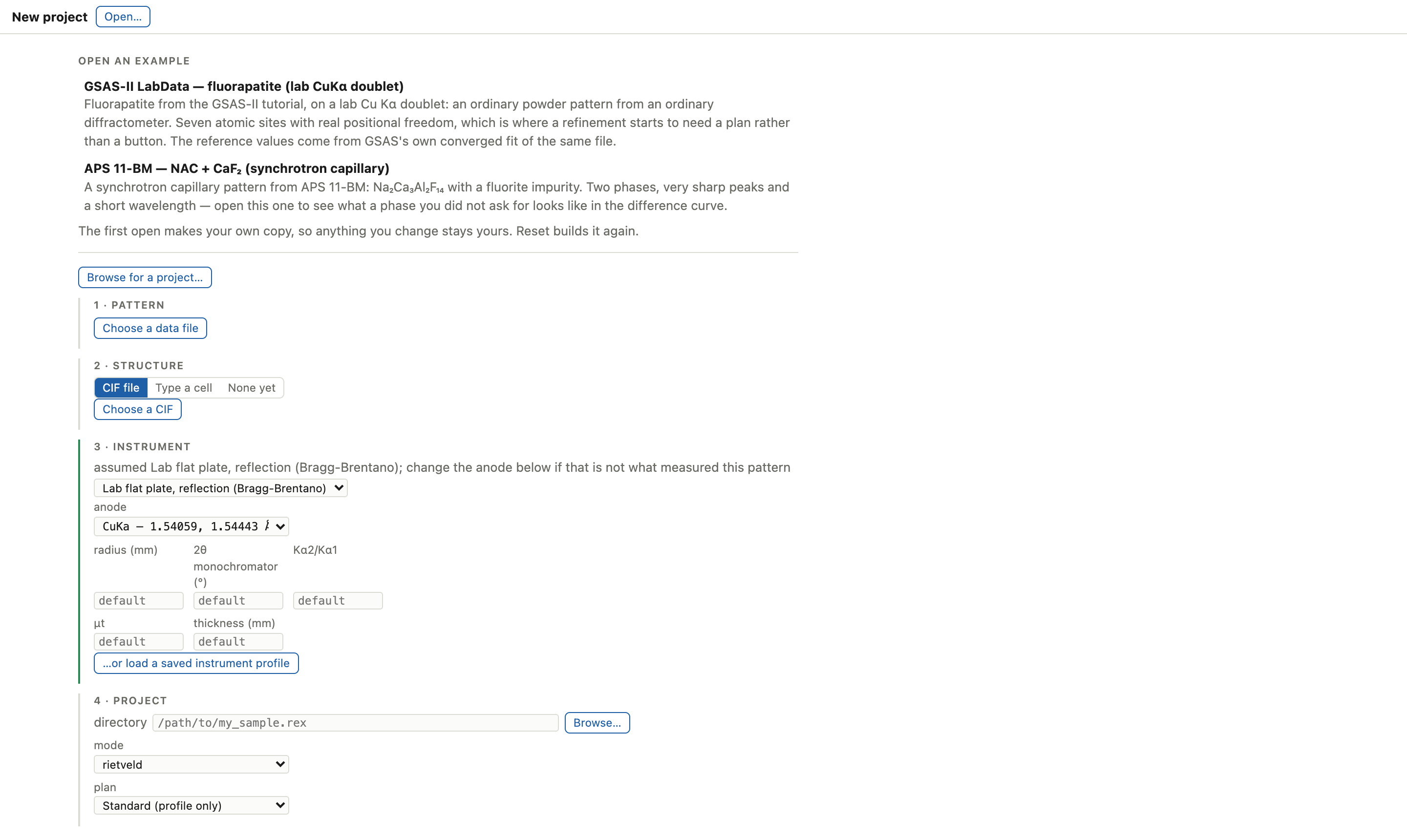
With no project open, the screen is the import panel, and it offers three ways
in: a list of projects you opened recently, a `Browse for a project…` button,
and a list of example projects shipped inside the package. Start from an example
if you have no data of your own.
The package ships 2 of them. Each is a real specimen with a
published reference value, and each carries the refinement protocol its
acceptance suite measures, so a fit of one is comparable with a number somebody
else recorded. Opening one makes your own copy, so anything you change stays
yours; a `Reset` button beside an example you have already opened throws that
copy away and builds it again.
Open the fluorapatite example. It is an ordinary laboratory pattern from an
ordinary diffractometer, with seven atomic sites. That is the point at which a
refinement starts to need a plan rather than a button.
## What is on the screen
The window is two columns. On the left is the pattern; on the right is a column
of nine tabs, all mounted at once:
| Tab | Is |
|---|---|
| `Parameters` | every parameter, with the one control that frees it |
| `Plan` | the stages the fit will run, and what each one frees |
| `Peaks` | picked lines, and indexing a pattern that has no structure yet |
| `Model` | the structure and the instrument, and a 3D view of the cell |
| `Text` | the whole project as one editable text document |
| `Series` | many patterns refined as a chain |
| `Report` | what the package will say about the last fit |
| `History` | every state the refinement has passed through |
| `Build` | what this build of the package can do |
On a project’s first open a `Getting started` strip sits above the tabs. It is
four steps, and it is neither a wizard nor modal. You can ignore it, work around
it, and dismiss it whenever you like. Every step except the last is derived from
the project rather than remembered, so it cannot disagree with what you have
actually done: undo a fit and `Run the fit` un-ticks itself.
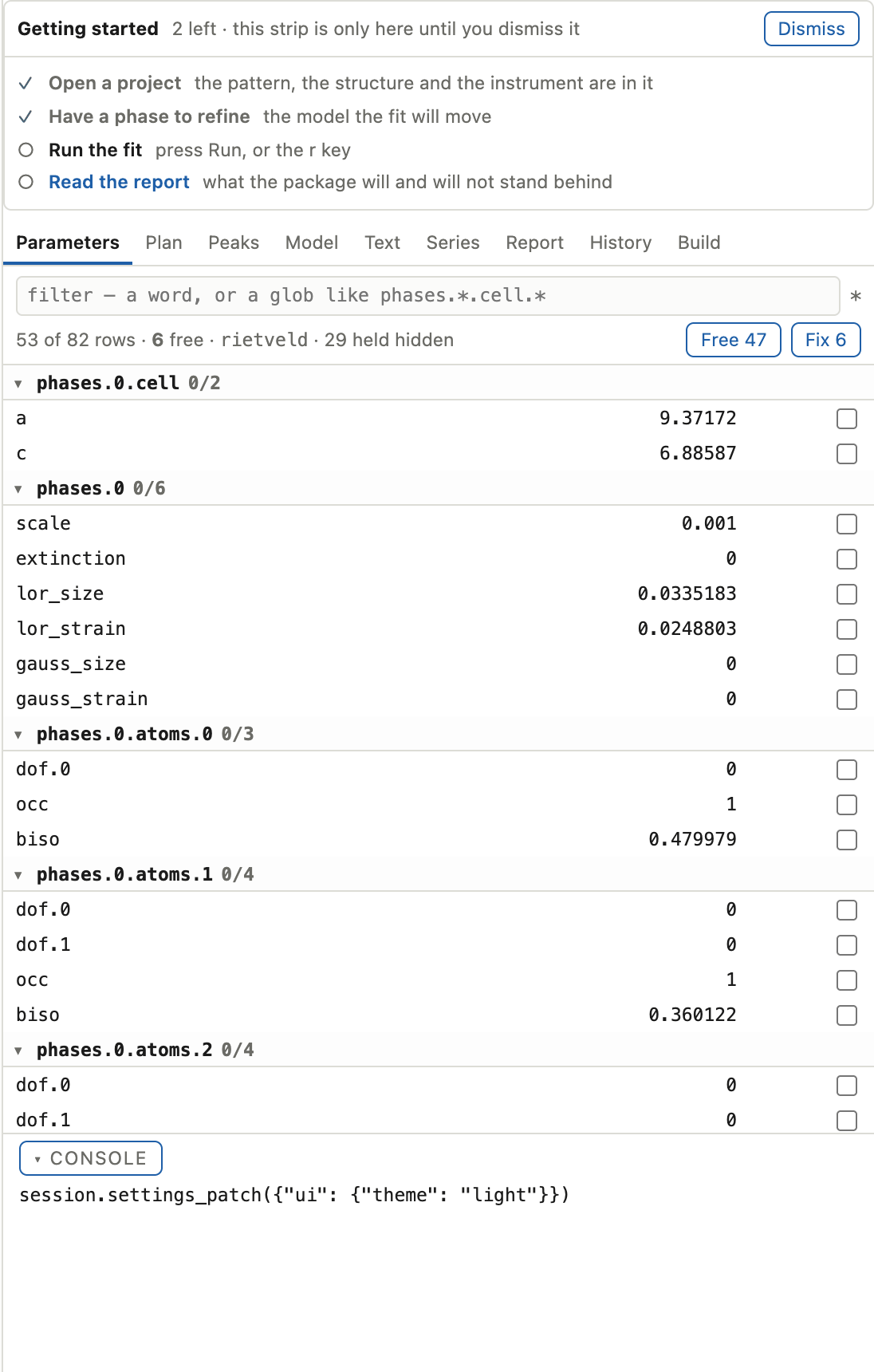
Dismissing it is remembered for that project, and nothing else about it is
written.
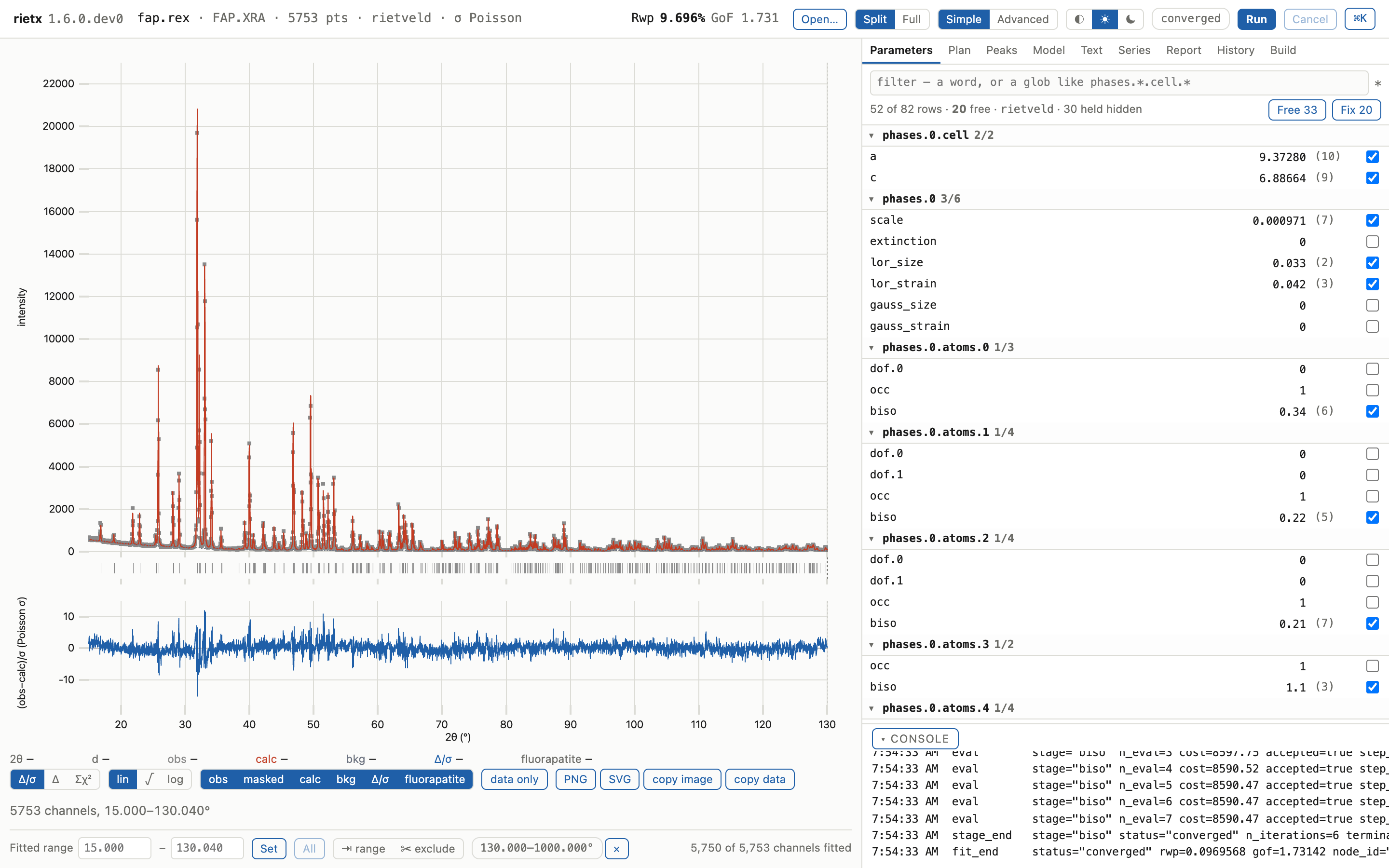
`Split | Full` in the header chooses how much of the window that column gets,
and the tabs travel with it. The tab is where you are and the layout is how wide
it is. There are no modes.
The header also carries the project’s name and pattern, `Rwp` and `GoF` once a
fit has run, `Simple | Advanced`, a three-way theme control (`◐` follow the
system, `☀` light, `☾` dark), and `Run`.
## Run the fit
Press `Run`, or the `r` key.
The run pill in the header names the stage and counts them off. Underneath the
tab column, the console prints each stage as it starts and finishes, and beside
each one the Python call that would have done the same thing. That echo is the
on-ramp described in [The GUI as a text document and a wire](../reference/gui-power.html.md). You can always find out what a button you
pressed actually did.
When it stops, `Rwp` appears in the header. Lower is better. What counts as good
depends on the data, and [Agreement statistics](../theory/estimation.html.md#agreement-statistics)
defines Rwp beside the expected value it is judged against.
> **A hopeless fit says so**
>
> Past an Rwp of 0.35 the header shows `⚠ not a fit yet` beside
> the number, and the run’s own status pill may still read `converged`. Both are true: the
> optimiser stopped moving, and the model is not yet describing the data. Believe
> the warning, and go to the Report.
## Read what happened
Look at the plot first. Three curves are drawn over the measured points: the
calculated pattern, the background, and underneath them the difference.
Structure in the difference curve is the model failing to explain something, and
where it sits is the diagnosis. A difference that swings under one peak is a
shape or a position problem; one that follows the whole pattern is a scale or a
background problem.
Two knobs under the plot change what you can see:
- The `residual` selector switches the lower panel between `Δ/σ`, `Δ` and `Σχ²`.
`Σχ²` accumulates the misfit from left to right, so a flat stretch contributed
nothing and a step is exactly where the fit is bad. It locates the worst misfit
better than any single number does.
- The intensity scale (`lin`, `√`, `log`) redraws the same numbers. `√` makes
weak peaks visible without pretending they are strong.
Then open the `Report` tab. It states what the package is prepared to say about
this fit, and it is built to refuse a confident wrong answer: where two
explanations fit the misfit equally well it says so and names both, instead of
picking one. [About the report](../concepts/report.html.md) is the full account of what those
statements mean.
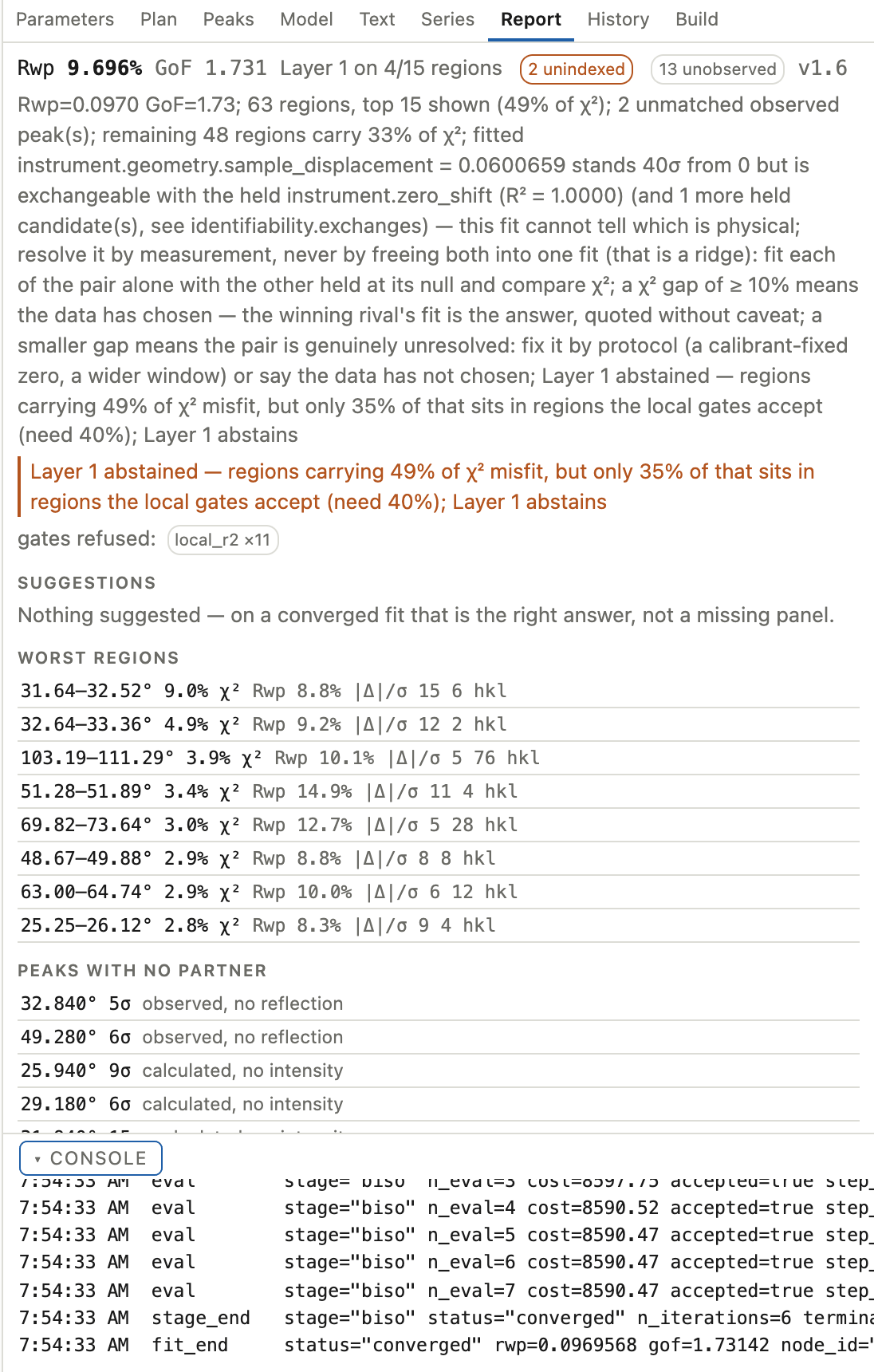
The screenshot above is the fluorapatite example after the run this page
describes. The report has found a real degeneracy in it: a specimen displacement
that “stands 39σ from 0 but is exchangeable with the held zero shift”. It says
the fit cannot tell which is physical. That is the package declining to give you
a confident wrong number.
## Then your own data
`New project…` in the Model panel’s header, or `Open…` in the app header, opens
a four-step wizard:
1. `Pattern`. Choose a data file. The step names the reader that claimed it, in
the reader’s own words, and shows the options that reader accepts. So a
multi-scan vendor file grows a scan picker here and a two-column text file
does not. Read the diagnostics it prints: this is where you find out that a
scan was stored backwards, or that an attenuator factor has been applied to
the counts.
2. `Structure`. A CIF file, a typed space group and cell, or `None yet`. The
typed form offers only the cell parameters the symmetry leaves free, so a `b`
under a tetragonal symbol is not a value you can get wrong. `None yet` makes
a project with no phase, which is the right start when the pattern is what
you have and the cell is what you are looking for. See
[Peaks](../reference/gui-guide.html.md#peaks) in the panel guide.
3. `Instrument`. A preset per geometry and anode, or a saved instrument profile.
The step pre-fills from the data file’s own header where it can, and says why
it chose what it chose. Where it says nothing, that silence is deliberate: a
header whose anode name and wavelength disagree gets no suggestion, because a
wrong pre-fill looks like it was read.
4. `Project`. Where the `.rex` directory goes, the intensity mode, and the plan.
Nothing is written until you press `Create project`.
> **Choose the anode yourself**
>
> The wizard refuses to default the instrument. A wavelength nobody chose ends up
> in every cell parameter you go on to refine, and it is invisible in Rwp. The fit
> is as good as ever and the numbers are wrong.
> [The wavelength–cell degeneracy](../theory/peak-positions.html.md#the-wavelengthcell-degeneracy)
> has it in full.
## Where to go next
- [The GUI panel by panel](../reference/gui-guide.html.md): the nine panels, and when to branch the history.
- [The GUI as a text document and a wire](../reference/gui-power.html.md): the `.rxt` text document, the keyboard, and the routes.
- [Tutorial notebooks](tutorials.html.md): the same fluorapatite pattern fitted in Python, one step a notebook cell.
- [Guides](../guides/index.html.md): one task a page, each done from a Python script.
- [About a fit](../concepts/fit.html.md): what the stages of a plan are actually doing.