The GUI panel by panel#
This page covers the GUI’s whole window, panel by panel: what each panel is for, and the handful of things about it that the screen cannot say about itself.
The GUI tutorial runs one fit and reads it. Read this page beside the app rather than instead of it. Most controls carry their own explanation: a dotted underline means a definition is one click away, and the popover it opens is generated from the same help corpus as the parameter map and the diagnostic codes. What is written here is the part no tooltip can hold: why a control behaves as it does, and when you should reach for it.
The shape of the window#
Two columns. The pattern on the left, a column of nine tabs on the right, and the console beneath them. Every panel is mounted at once, so a filter you typed, an edit you have not applied and a text buffer you are half way through all survive a look at another tab.
Split | Full in the header chooses how much window the panel column gets. It
is a view choice and is not persisted; the panel widths you drag are, per
project. Two panels want the room, and Full is for them: the Text document’s
editable columns need about 550 px and the atom table about 470.
The header#
Control |
Does |
|---|---|
the project chip |
names the |
|
the last run’s agreement; |
|
the import wizard, with the recent list in it |
|
how much window the panel column takes |
|
whether rows nothing can free, bounds and transforms are shown |
|
theme: follow the system, light, dark |
the run pill |
the stage and its number while busy; the last status otherwise |
|
start the plan; stop it between iterations |
|
every command, with the Python call it makes |
There is no menu bar and no Save button, and neither is an omission. Settings
persist on the verb. The moment you tick a box or drag a region it is written to
the project, so there is nothing to save and nothing to lose on close.
Save the project exists as a palette command for the one case that is not
covered, which is writing out the settings file after an edit made from
elsewhere.
The theme belongs to you and not to the project. It lives beside the recent list in the application’s own settings, so it follows you across projects, ports and browser profiles. It is also the one control that still works while a run is in flight, because it is not about the project.
The pattern#
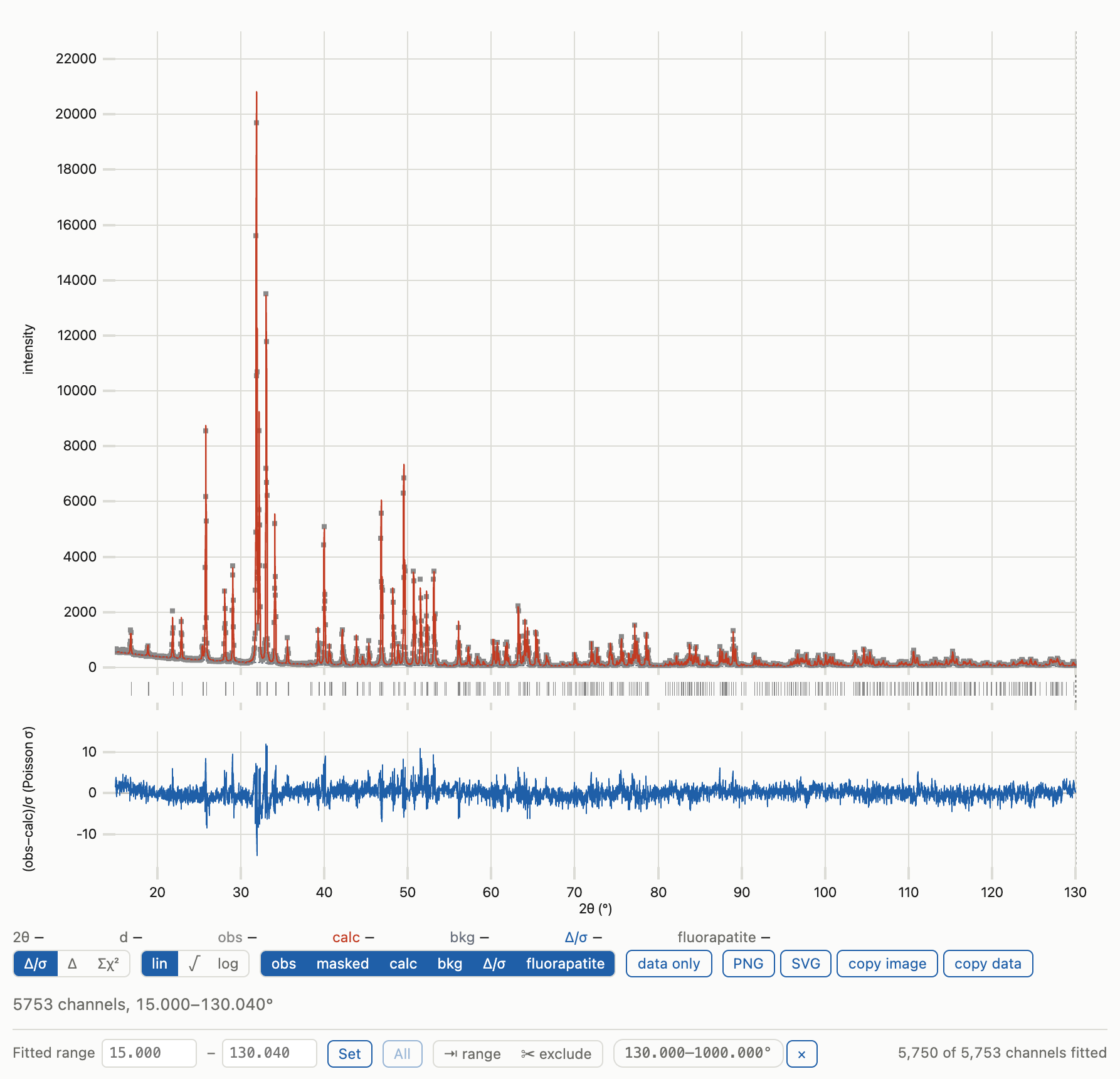
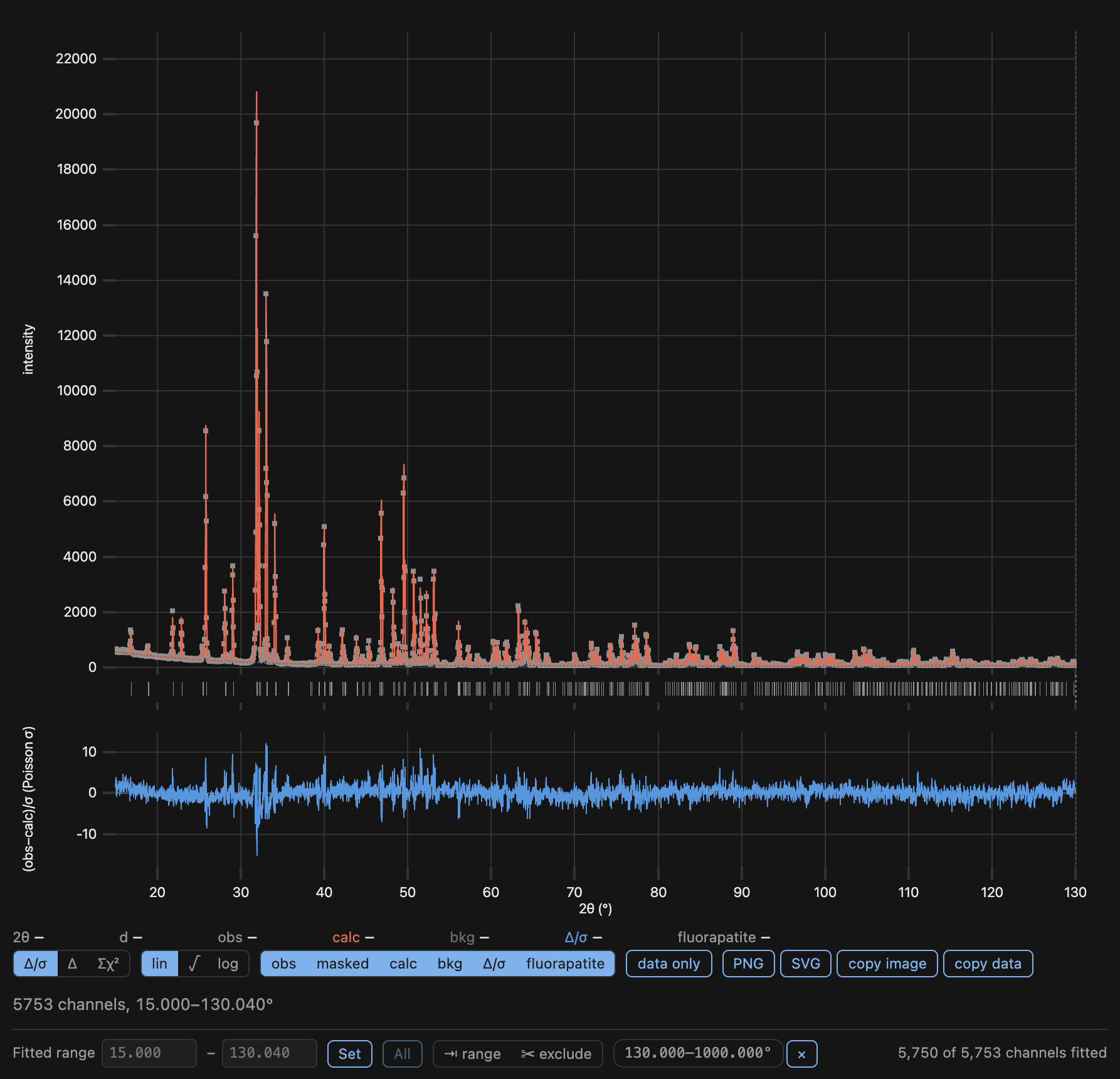
The left column is the measured points, the calculated pattern, the background, a band of reflection ticks, and the difference curve underneath.
Reading under the pointer#
There is no hover tooltip; a box that covered the data was worse than no box.
What you get instead is the readout strip under the plot: a fixed set of slots
that always shows 2θ and d, then one row per drawn curve, each label in that
curve’s own colour, plus the nearest reflection of each phase as a signed offset.
A slot empties to — when there is nothing under the pointer, so the plot above
never resizes as you move. A solid vertical line marks where you are.
The strip follows what is drawn. Hide a curve and its row goes; press
data only and the strip empties down to the measured points. That is correct
behaviour.
The two kinds of knob#
Only one kind changes the answer, and both sit under the same plot and look alike.
Drawing choices change the picture and nothing else. They are not persisted, so they reset with the session:
the residual selector:
Δ/σ,Δ,Σχ²;the intensity scale:
lin,√,log;the per-curve visibility toggles, and
data only.
Σχ² accumulates the weighted misfit from left to right, so a flat stretch is a
region that cost nothing and a step is a region that cost a lot. A curve that is
a staircase with one tall step tells you where to look in a way that no
whole-pattern number can.
Protocol controls change what is fitted, move Rwp, and persist the moment you set them:
the fitted range: two typed boxes, or the
⇥ rangegesture;the excluded regions: a list of pills, or the
✂ excludegesture;and beside them the count,
N of M channels fitted, which puts a number on the shaded band on the plot.
Because settings persist immediately and curves only move on a run, the two can
disagree, and the panel says so:
the curves shown were fitted over a different set of channels — re-run.
The armed gestures#
⇥ range and ✂ exclude are modes, not modifiers. Press one and the next drag
on the plot sets a range or excludes a region instead of zooming; the cursor
changes to say so, the peak gestures are suspended while it is armed, one
selection disarms it, and Esc cancels.
They have to be modes because a region drag and a zoom drag are the same gesture at every distance. There is no radius at which the app could tell them apart. The peak gestures below are the opposite case, where the ambiguity is local and can be resolved by aim.
The plot holds every channel of the pattern, sent once, so a zoom fetches nothing and zooming in shows every point the file has. Drag to zoom, scroll to zoom about the pointer, and shift-scroll or alt-drag to pan. Double-click returns the whole pattern. The view stays where you put it across a peak edit, a knob change and a fit that lands on the same channels. A pattern past 150 000 channels arrives as a min/max sample, and the line under the plot says so.
Saving the picture#
Four buttons at the end of the knob strip save or copy what the plot shows now, at your zoom. The two pictures leave your hidden curves out.
Button |
Gives |
|---|---|
|
the plot as a PNG file, at your screen’s pixel density |
|
the plot redrawn as vectors, for a figure you will edit |
|
the PNG, on the clipboard |
|
every channel in view as tab-separated columns, which a spreadsheet pastes |
The columns are two_theta, y_obs, excluded (1 for an excluded channel),
y_calc, y_background, and the residual the selector shows, and a hidden
curve keeps its column. The legend is in neither picture, so name the curves
in your caption. The line beside the buttons says what each press did, and
says so when a browser refuses the clipboard.
Parameters#
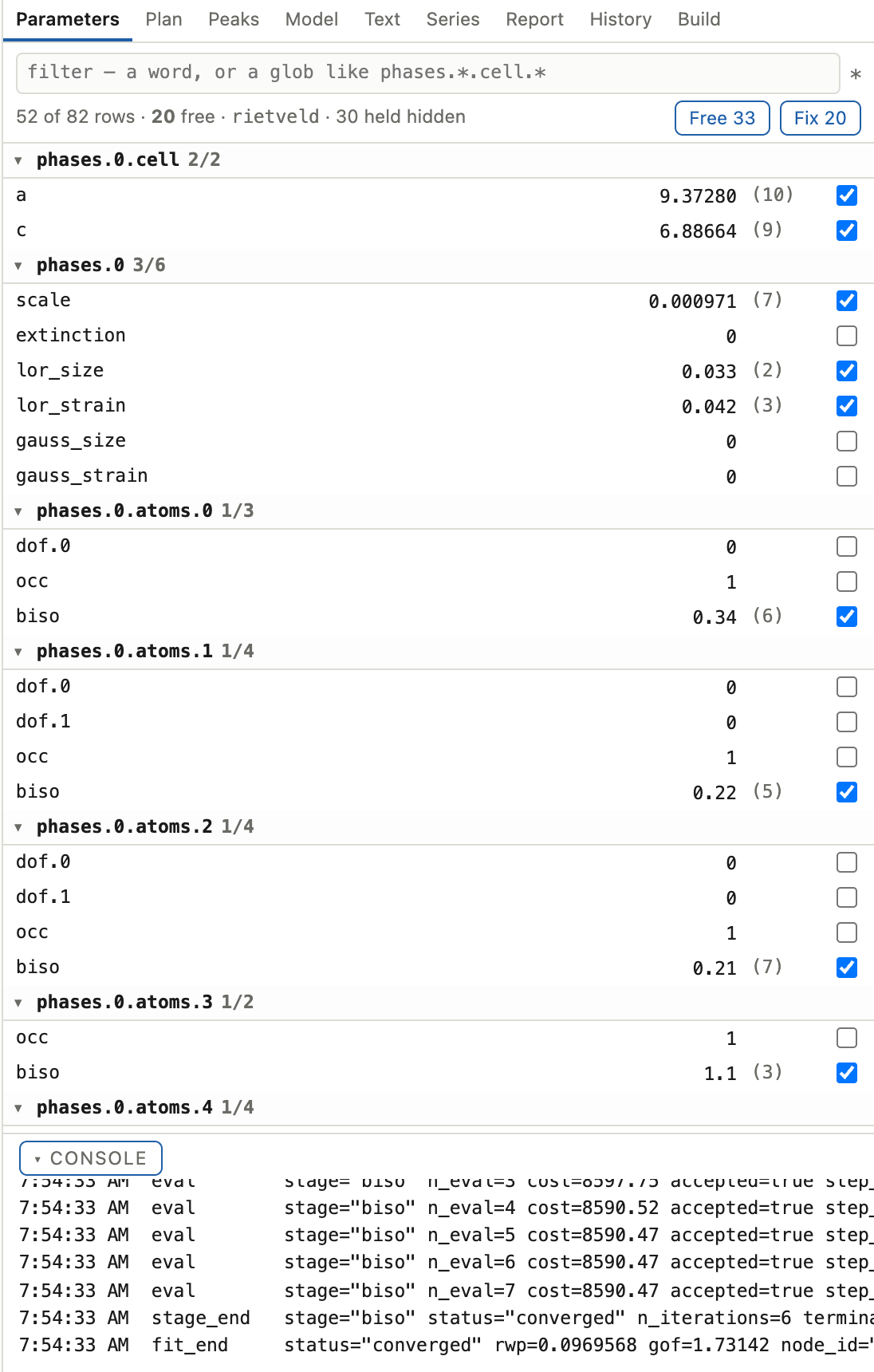
Every entry in the parameter table, one row each, with the control that frees it.
The filter box is the selection. Type a glob such as phases.*.cell.*, and the
free and fix buttons act on the glob rather than on rows you have ticked. One
glob is one set_vary call and therefore one history node, where a per-row
multi-select would be one node per row. The count beside the box tells you how
many rows the glob reaches before you act.
A row that cannot be freed has no checkbox at all. It carries a mark saying
which of four reasons holds it: it is locked by symmetry, tied to another
parameter, fixed by the intensity mode, or needs a held cell. Hover the mark for
the reason in the package’s own words. Simple hides those rows along with
bounds and transforms, and reports how many it hid; Advanced brings them back.
A typed value is compared against the value as displayed, so clicking into a
cell showing 4.1568(2) and out again cannot truncate the parameter.
Plan#
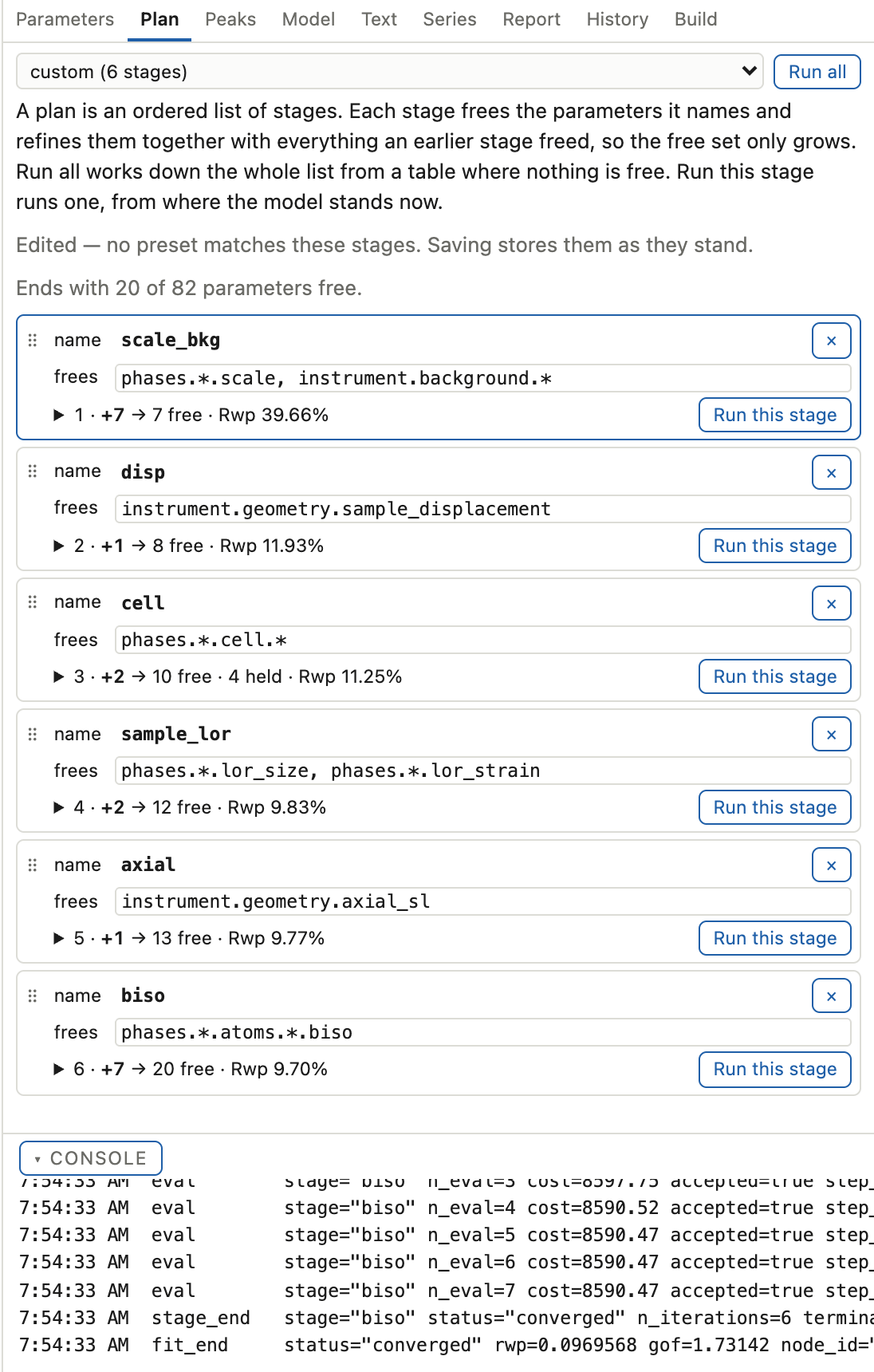
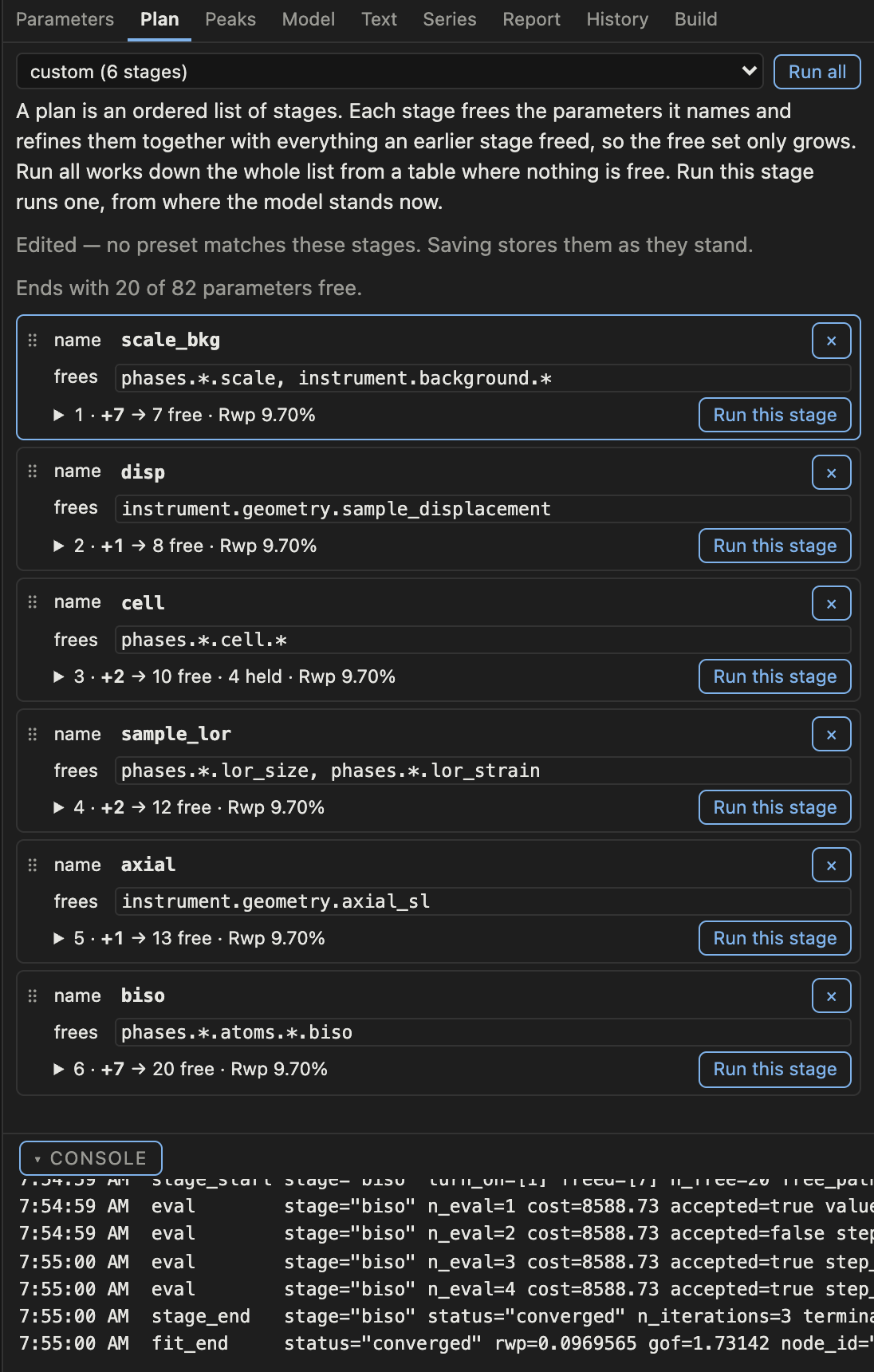
The stage list, and what each stage will actually do.
The panel resolves the plan against the real parameter table and shows, per stage, the paths its globs reach, which of them are newly freed, which are held and why, and the running count of free parameters. That resolution is the real verb and not a preview. It is the same call the fit makes, so the ties, the locks and the mode’s force-fixes shown are the ones you will get.
Under the last stage the panel names the closing stage every plan ends with.
It frees every stage’s globs once more, on peak windows that drop 0.10% of
each peak, and its Rwp is the answer’s. The plan’s closing line in the text
document sets the fraction, and none removes the stage.
The two buttons do different things:
Run allruns the plan from the start. A plan replaces the vary flags rather than continuing them, so a row you freed by hand that no stage names is dropped.Run this stageruns one stage from where you are, and keeps what you freed by hand.
A plan you have edited and not saved has no resolved facts and cannot be run, because the ladder describes the plan the server is holding.
Peaks#
Two jobs: fitting individual lines, and finding a cell when you have no structure.
Picking lines#
The plot becomes an editing surface while this tab is up, and prints its four gestures across the top whenever it is:
Gesture |
Does |
Typed route |
|---|---|---|
click empty space |
add a line |
the panel’s 2θ box |
drag a marker |
move it |
the Text pane’s |
shift-click |
exclude a line from indexing |
the row’s checkbox |
right-click |
remove it |
the row’s |
Every pointer verb has a typed twin. A pointer is not available to everyone, and a position typed to four decimals is not a position aimed at with a mouse.
A drag only moves a line when you are zoomed in far enough for the line to be visible. The grab radius is the smaller of 10 px and 1.5 fitted peak widths, so at a whole-pattern view a drag is always a zoom. Zoom first, then correct. Before that radius existed, a drag starting near a marker could move a line by degrees.
A line the fitter could not resolve is drawn differently rather than hidden, and
the flag on its row says why. That is the fitter explaining the shape of a
strong peak. A pasted position list carries the badge σ assumed, and its σ is a stated
assumption rather than a property of your data.
Indexing#
The Search controls disclosure is ProjectDoc.indexing as a form: which
engines and crystal systems to search, centrings, a preset, bounds and budgets,
and two editors for what you already know. Its vocabularies come from the
build’s own capabilities, so a fourth engine would appear here with no new
control written.
Three things to understand before reading an answer:
The default is a bounded search.
quickputs a ceiling on the whole run and streams a graded shortlist per crystal system as each finishes, so the first click gives an answer in bounded time. Alowgrade from a run that hit its ceiling means unconfirmed rather than bad, and the full search is one rerun away.A list with no high-confidence entry is a result. The whole module is built so that “the data cannot distinguish these” is an answer it can give, and there is no setting that forces an answer.
State what you already know. A prior cell or space group narrows the search honestly, where widening the tolerances does not.
Screen extinctions lives in a candidate’s expanded row: one row per extinction
class, every space group in the class listed, and the reflections that refute it
named. The teaching point is the package’s own. The extinction symbol is what a
powder measures, and a single space group out of a class is a convention you
choose rather than a measurement the table made.
Adopt turns a candidate into a Le Bail scaffold and flips the mode. The
server’s own verdict enables it per row, and the badge does not.
Model#
The structure and the instrument, and a 3D view of the cell.
The split explains why some edits feel different. If the parameter table has the path, the parameter table owns it: a lattice parameter, an occupancy, a Biso, a profile term go through the parameter routes, where the tie and lock rules already live. A species, a label, an atom added or removed, a geometry or a background family go as a whole validated model, because each changes what the table contains.
Two consequences you will meet:
Coordinates are not typed as x, y, z. A site refines along the directions its symmetry allows, so the editor offers those; a fully fixed special position gets no coordinate control at all. Typing a whole position is possible, and the site answers. An unreachable one is refused, naming the directions it does allow and the nearest position they reach. It is never snapped, because snapping would move the atom to a different site than the one you asked for.
An edit empties the plot until the next run. The curves described values the model no longer holds, so they are discarded rather than left to mislead. The workflow is edit, run, compare, and an empty plot there is the design.
The instrument form is three groups, Source, Geometry and Profile, and
which group a field is in is a decision rather than its dot-path. The axial
apertures are drawn with the profile they shape, and the zero shift beside the
displacement it is refined against. U, V and W stand above X and Y. There is no
Z; GSAS and FullProf spell these letters differently, so match the physics
(size varies as 1/cos θ, strain as tan θ) and never the letter.
Changing a phase’s space group shows a preview of what the change would invalidate before it commits: incompatible values with their nearest allowed ones, coordinates that would be dropped, and the consequences a table diff cannot see, which are a setting change, an orbit collision, or the cell’s atom count doubling under a symbol with the same number of free parameters.
The 3D view#
A third column of this panel, on by default. The server computes the geometry, and the browser draws it with rietx’s own WebGL2 renderer, so every sphere, ellipsoid and stick is exact at any zoom. Two modes: balls, and displacement ellipsoids. The projection is parallel and there is no axis box, so the cell’s own a, b, c edges are the frame of reference. Drag to rotate (a free trackball), shift-drag or right-drag to pan, and scroll to zoom. The buttons view down a, b or c. The line under the picture names the atom or bond under the pointer.
In ellipsoid mode each anisotropic site also shows its three principal ellipses, the rings of an ORTEP drawing. An isotropic site shows none, because its axes point nowhere in particular. Where a site displaces equally in two directions, as on a threefold or higher axis, two of its rings could sit at any angle round the third. One of them is drawn through the lattice vector nearest their plane, and each symmetry copy of the site shows the copy of those rings. Every machine draws the same picture.
Ball mode also draws coordination polyhedra: the shape the nearest anions make
around a cation, such as SiO₄ or AlF₆. Shells of four to six ligands are drawn
by default, which are the tetrahedra and octahedra of a framework. Larger
shells, such as NAC’s CaF₈, start switched off. The row under the species
legend holds a polyhedra switch and one button per formula. A species with
two shapes, such as a CaO₆ site beside a CaO₈ one, has two buttons. A formula
whose ligands would take the picture past the 400 atoms the viewer draws keeps
its button, greyed out, and the note under the picture counts it. The switch
is held per mode, so polyhedra start on in ball mode and off in ellipsoid mode,
where the faces would cover the ellipsoids. A drawn polyhedron takes the place
of its centre’s sticks. It also brings the ligands it needs outside the cell,
and they go when it is switched off. A centre outside the cell carries no
polyhedron, so it is drawn only while its site’s polyhedra are off, as in
VESTA. Pointing at a face names the polyhedron,
its ligand count, its mean distance and its gap. When a second gap is nearly as
large and would close a shell of its own, the line names it too, as next gap ×1.15 after 4. Brunner and Schwarzenbach (1971) call two such gaps
approximately equal, and the shell drawn is then a choice the data barely
makes. The caption lists what is drawn and what is off.
A centre is a metal, or a non-metal bonded to a more electronegative one, as P is in PO₄. A ligand is any other non-metal except hydrogen. A non-metal bonded to a metal and to one more electronegative atom is a ligand too, as the C of a cyanide or a carbonyl is. The ligands are searched out to three times the nearest one’s distance. An atom bonded to one of the centre’s own ligands, and lying behind it, is part of that ligand and is left out, as a cyanide’s N is. The shell ends at the largest jump in the sorted distances. It is drawn only when that jump is at least 1.15 times, every ligand is a corner, and the centre is inside. On 21 test phases, from spinel to gypsum, this draws the picture a chemist would, and Prussian blue’s C-bonded iron draws FeC₆. It does not cover three cases:
An intermetallic has no anions, so it draws no polyhedra.
A split site draws none. That is a shell holding two partly occupied ligands closer to each other than to the centre.
A split pair can still get a stick. Two non-metals closer than 0.7 times their radius sum are read as one atom over two positions: no stick joins them, and neither makes the other a cation. With a metal in the pair, the bound is 0.5, since uranyl’s U=O sits at 0.67. Two partly occupied non-metals further apart lose their stick when they sit closer to each other than to an atom both are bonded to, as a disordered nitrate’s O do round Na. A pair that meets no test keeps its stick, as Prussian blue’s C and a vacancy’s water O do, and Ag β-alumina’s Ag and O4 do at 0.6 to 0.7 of their radius sum. A file’s disorder groups settle those, where it has them.
A CIF that states disorder groups is drawn with every alternative, and the
viewer reads the groups. It draws no stick between two sites the file says are
never occupied together, and no polyhedron holding both.
major alternative only, under drawing, draws each assembly’s most occupied
group alone, and the caption says how many sites it left out. A group with a
minus prefix is a site disordered about a special position: its symmetry
copies are its alternatives, and that button leaves them all drawn.
The rule can be overridden, as Mercury’s central and ligand element lists
override its own. Under drawing, the round row holds one button per element
for the atoms a polyhedron is drawn round, and the corners row one per element
for the atoms at its corners. Both start as the rule picks them. Any element
may go in either row, so F round with Ca at the corners draws fluorite’s
anion-centred FCa₄. Cs round with Cs and Cl at the corners finds CsCl’s
14-atom environment, and its legend button starts off, as every shell of more
than six does. An intermetallic’s environments are asked for the same way.
Double-clicking an atom draws that atom’s environment alone: its shell
among every element, as Daams and Villars (1993) draw an atomic environment.
Double-clicking empty space ends it. chemistry goes back to the rule, and so does a change of phase. The
caption says when the lists are your own.
PNG renders the picture again, 3000 pixels on its long side, with the a, b, c
letters drawn in. That is a 17 cm figure at 300 dpi with room to crop.
transparent PNG, under drawing, leaves the background out.
Two things here will mislead you if nobody says them:
The bond threshold is a drawing threshold rather than chemistry. Bonds are drawn at a fraction of the sum of covalent radii, and no single value is right for both an ionic solid and an organic. LaB₆ at the default draws every La–B contact and looks like a cage; one turn of the slider down and the B₆ octahedron appears. It sits behind the
drawingdisclosure, and a first-time user needs it. No stick joins a metal to a cation at any threshold, so forsterite’s Mg is never joined to the Si of its SiO₄ neighbours.The ellipsoids are a diagnostic. Their axes are refined quantities, so a background flexible enough to imitate the peaks arrives here as balloons, while improving Rwp. A non-positive-definite tensor arrives as a flat disc, and the line under the picture gives the reason when you point at it. Six ordinary-looking numbers in the parameter table are obvious in the picture.
The probability selector scales the ellipsoids. The × size factor beside it is
a drawing multiplier and no ellipsoid stands above 100 %. A figure exported at a
multiplier other than 1 is not an ORTEP-quotable surface, and the caption prints
both numbers so it cannot be quoted as one by accident.
Element colours are chosen per phase rather than per element, so the same element can be drawn in two colours in two phases. The familiar assignments never move; the rest are separated against whatever else is in that phase.
Text#
The whole project as one text document: settings, plan, and every parameter row,
where @ frees a parameter and a bare value holds it. It is the fastest way to
free thirty things at once, and the only panel where a rectangular selection
(⌥-drag) makes sense. The format aligns its columns for that reason.
The normative description of the format is in The GUI as a text document and a wire. Two facts about using it belong here:
There is no merge and no force-apply. If the project moved under your buffer, you re-read and re-apply. The reason is sharper than “merging is hard”: your stale document also carries the old value of every row you did not touch, so applying it anyway would silently revert them.
Comments do not survive a re-render, because a document regenerated from the project has one authority and storing your comments would make two.
Series#
The one panel whose subject is a method rather than a model. A series is N separate refinements chained by a warm start, and its trajectory is N answers in order. Reading it as one joint fit with a time axis through it is the mistake to avoid.
It runs under this project’s protocol: mode, plan, 2θ limits, excluded regions. The panel states those rather than offering them, because one protocol over N specimens is what makes their trajectories comparable.
Run it both ways once. direction="both" refines the chain forwards and
backwards and flags the parameters the two passes disagree about. It is the only
check that separates a measured trajectory from an ordering artefact, and a
smooth curve is exactly what a poisoned chain produces. The panel banners the
disagreement and draws the backward chain beside the forward one. Then decide
whether you need to keep paying for the second pass.
The status column carries four chips, best learnt as two pairs. restaged and
reseeded are both recoveries, the first still from the neighbour’s answer so
the chain is unbroken, the second only from a cold start. hard means nothing
rescued it but a warm attempt was still the best available, and unrecovered
means it diverged on every attempt: it seeded no successor and joined no median.
On the trajectory plot a ring marks a reseed and a cross marks an unrecovered
point. They say opposite things: a ring is a good fit from a different starting
model, a cross is not a measurement.
The trajectory is drawn in the order the chain ran. A heat-then-cool series
therefore comes back along its own axis. Pointing at a point names its pattern,
its coordinate and its value, with the esd where the fit gave one. Clicking a
pattern’s row plots that pattern’s own fit instead. The chart has the pattern
plot’s four export buttons, between its legend and the plot. On the trajectory,
copy data gives each pattern in view with its x, its value and its esd, and
the backward chain’s value when there is one.
A series does not persist. Its patterns are staged uploads and its answer lives in the session, so closing the window loses the staged list. Say what you need from it before you close it.
Report#
The FitReport rendered. About the report is what the statements mean; five things
about this panel will otherwise be misread.
Above the suggestions sits a “Fit diagnostics” section. It lists every diagnostic
the fit’s result carries, errors first, then warnings, then notes, each under its
code and the parameters it names; an error opens in full, and every other row stays
folded to the purposes it is a warning under until you open it for its message and
suggestion. These are the package’s own
findings about the answer (BOUND_HIT, LEBAIL_ALTERNATION_STOPPED and the rest),
and no other panel shows them.
A suggestion with no Apply button is still a suggestion. Four of the action kinds are advice, and the note beside them is the deliverable. The background-flexibility pair is the case to watch: a more flexible background lowers Rwp while biasing displacement parameters up and scales down, so there is no honest one-click version.
A greyed suggestion reading
vetoed:is the engine agreeing with you and having already handled it. It looks like a refusal and is the opposite.“Could not rule out” is the headline. Where two explanations fit the misfit equally well, the report names both and caps its confidence rather than choosing. On the package’s own test case, applying a zero-shift correction to a fit whose cell was wrong improved Rwp from 21.6 % to 9.3 % by putting the error in the wrong parameter, and the report had said so in advance.
The predicted Δχ² is one number for the whole report and it is not a bound. The panel prints it once, and it cannot be used to rank the suggestions.
Applying a suggestion runs one stage, so it takes the same path the Plan panel’s per-stage Run takes and records one history node. Undo is a checkout, which throws the fitted curves away for the same reason an edit does.
History#
Every state the refinement has passed through, drawn as a graph. What this panel changes is what you are free to try.
After a Le Bail run that alternated, each node carries a pass k chip. The chip
is green on the pass the fit kept, and the head stands in it. It is orange on the
other passes, whose nodes are drawn faint and stay in the tree. Select a node to
read the verdict in words.
The rail is lanes, and a lane is where the tree divided. There are no named branches here and no moving refs. An edge runs down its lane and steps sideways in one row. Only a second parent is dashed, so a dashed line means “this rival strategy was folded in” and never “this is a merge”. With more lanes than the palette has hues a colour repeats, and that repeat is a collision you can see.
Select two nodes and the compare table reads path · a · b · Δ · Δ %, each side
at its own family’s number of decimal places and the percentage taken against
|a|. Only the Rwp badge is coloured for direction: a parameter difference has
no good direction, and colouring one would be a claim.
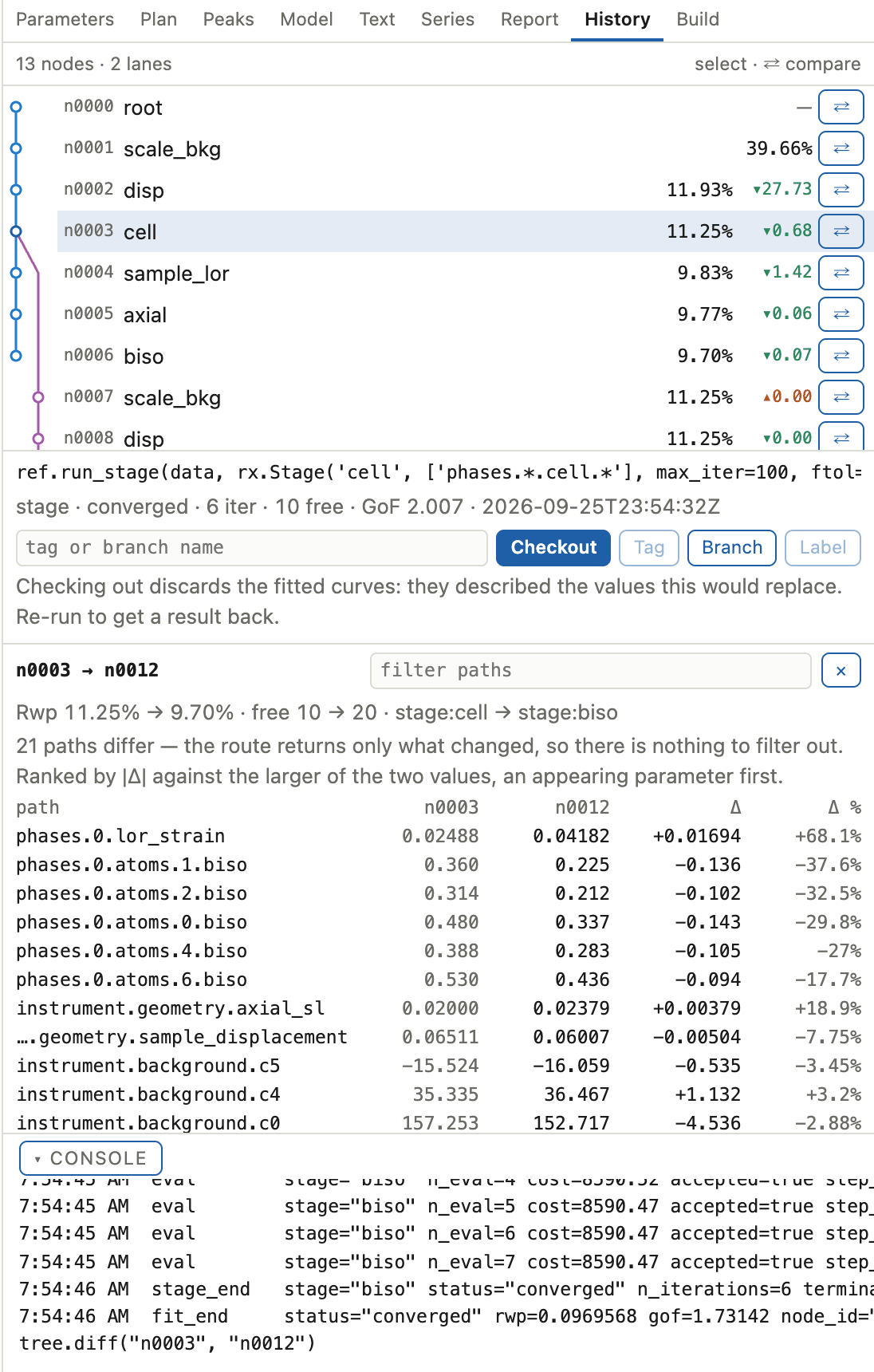
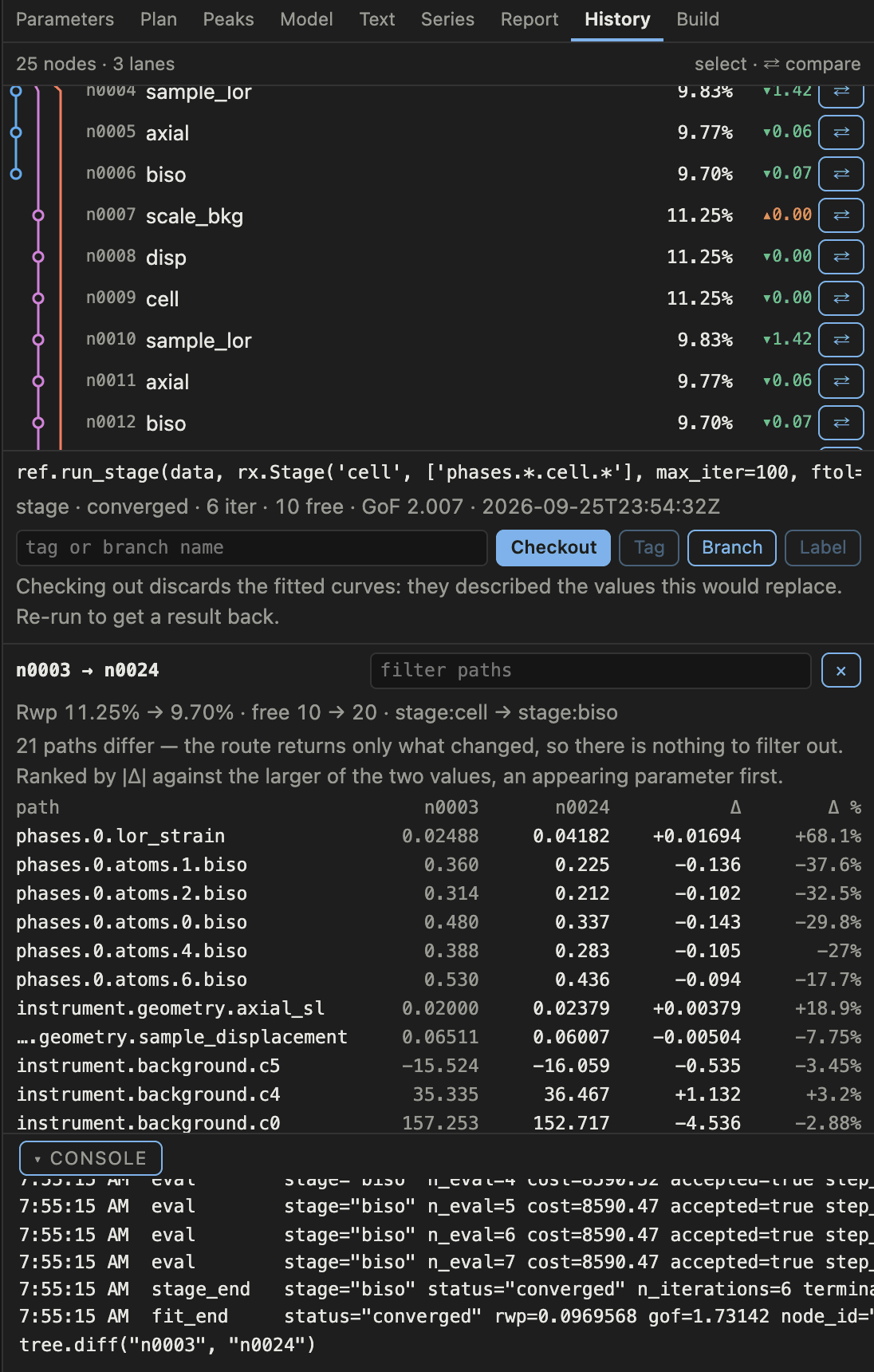
The picture above is the state this section is about: the plan was run, then run
again from the cell node with a different strategy, and the two lineages sit
side by side with a comparison of one node against the other underneath.
When to branch#
A Rietveld refinement is a sequence of decisions that are hard to unmake. Free the wrong thing early and the fit slides into a minimum that looks fine and is wrong, and by the time the difference curve says so you have made ten more decisions on top of it.
Branching turns that into an experiment you can run twice:
Before a decision you are not sure of, branch, try it, and compare against the state you left. Freeing anisotropic displacement parameters, adopting a candidate cell and turning on preferred orientation are all that kind of decision. The comparison is the point: a correction that improves Rwp while moving a cell by 1000 ppm has told you something, and you can only see it beside the other answer.
When two explanations both fit, run both. The report will already have told you it could not separate them; a branch each is how you find out whether they disagree about anything you care about.
Before anything irreversible in the model, such as a space-group change or a replaced structure, because a checkout restores the parameter count and not only the values.
Checkout, tag and annotate are all here, and every one of them is a node. The history is append-only, so exploring it cannot lose anything.
Build#
What this build of the package can do, rendered from its own capabilities: backends and whether each optional dependency actually imports here, solvers, plans, modes, anodes and the pattern formats that can be opened. It is derived, so it cannot claim a feature the installed package does not have.
It also lists the panels the GUI plan still owes, which is currently none.